Category: Blog

Your blog category

  • What is a DNS Leak? (The 2025 “Explain Like I’m 5” Useful Guide)

    Think your VPN makes you invisible? A DNS leak can expose your entire browsing history to your ISP. Learn what it is, how to test for it, and how to fix it for good.

    Quick Answer: What is a DNS Leak?
    A DNS leak occurs when you’re connected to a VPN, but your device continues to use your Internet Service Provider’s (ISP) DNS servers to look up website addresses. This allows your ISP to see every website you visit, completely bypassing your VPN’s privacy protection.


    The Hidden VPN Flaw That Exposes Everything

    You did everything right: you subscribed to a VPN, you turn it on every time you browse, and you feel secure. But a single, often invisible misconfiguration can shatter that privacy, leaving you exposed.

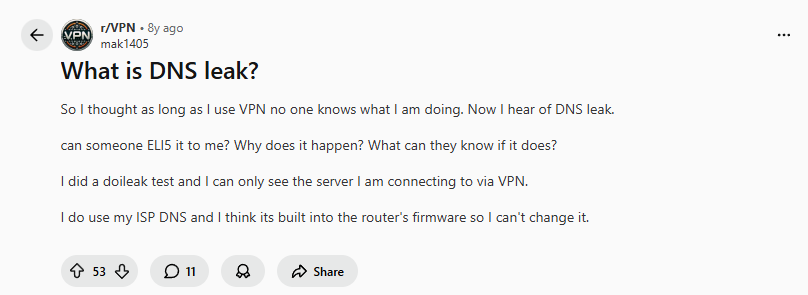
    The moment of realization is perfectly captured by this concerned Reddit user:

    “So I thought as long as I use VPN no one knows what I am doing. Now I hear of DNS leak… Why does it happen? What can they know if it does?”

    This user identified the core issue: a VPN is not a magic privacy button. It’s a complex tool, and if not configured correctly, critical data can “leak” outside its secure tunnel. Understanding this flaw is the difference between true privacy and a false sense of security.

    Reddit’s Real-World Explanations (That Actually Make Sense)

    1. The “Phonebook” Analogy

    The simplest explanation comes from a Reddit user who broke it down using a perfect analogy:

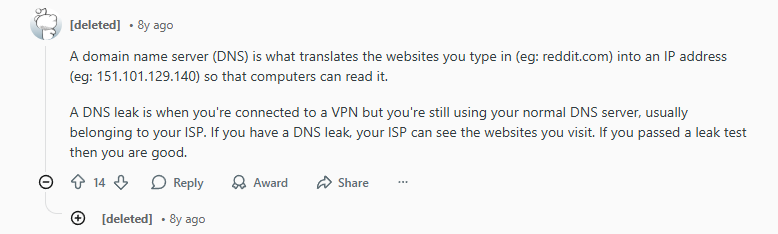
    “A domain name server (DNS) is what translates the websites you type in (eg: reddit.com) into an IP address (eg: 151.101.129.140) so that computers can read it. A DNS leak is when you’re connected to a VPN but you’re still using your normal DNS server, usually belonging to your ISP. If you have a DNS leak, your ISP can see the websites you visit.”

    Think of it this way: The DNS is the internet’s phonebook. A DNS leak is like using a VPN to have a secret phone conversation, but you’re still asking your nosy landlord’s phonebook (your ISP’s DNS) for the number of every person you call. The landlord can’t hear your conversation, but they see a complete list of everyone you’re talking to.

    2. The Technical Deep-Dive

    For those who want to understand the precise technical failure, user datbird provided a masterful breakdown:

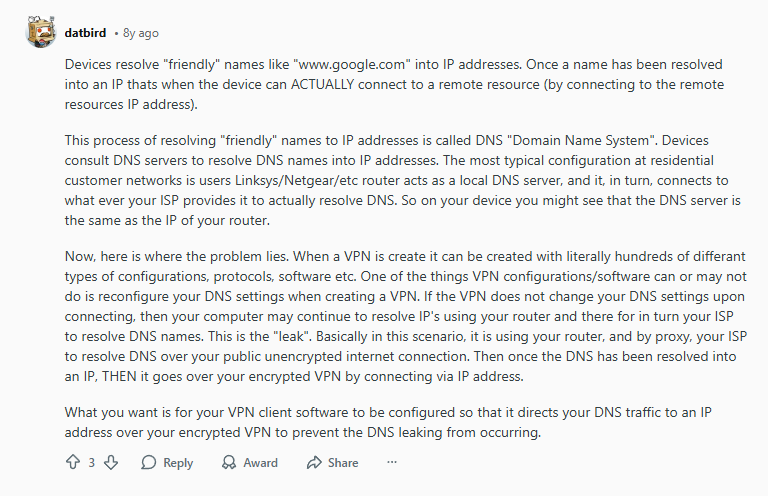
    “If the VPN does not change your DNS settings upon connecting, then your computer may continue to resolve IP’s using your router and therefore in turn your ISP… This is the ‘leak’. Basically… it is using your router, and by proxy, your ISP to resolve DNS over your public unencrypted internet connection. Then once the DNS has been resolved into an IP, THEN it goes over your encrypted VPN.”

    This reveals the critical point: the leak happens before your traffic even enters the secure VPN tunnel. Your device blindly sends unencrypted DNS requests to your ISP, completely undermining the VPN you’re paying for.

    3. The Simple Reassurance

    The good news, as pointed out by user Zhangsun321, is that a proper VPN setup should handle this automatically:

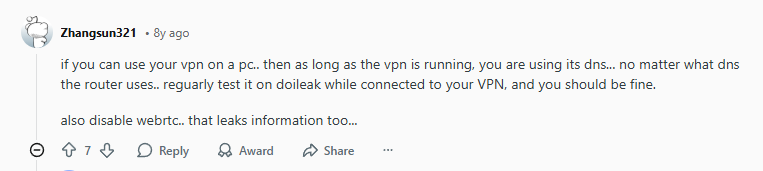
    “If you can use your vpn on a pc… then as long as the vpn is running, you are using its dns… no matter what dns the router uses… regularly test it on dnsleaktest.com while connected to your VPN, and you should be fine.”

    They also highlighted another common leak vector: “also disable webrtc.. that leaks information too…” This shows that DNS is just one of several potential leaks a privacy-conscious user must address.

    Step-by-Step Guide to Test and Fix DNS Leaks

    How to Test for a DNS Leak (30-Second Check)

    1. Disconnect your VPN. Go to a site like DNSLeakTest.com or ipleak.net. Note the IP address and ISP that appears—this is your real one.
    2. Connect to your VPN. Refresh the test page or run the extended test.
    3. Analyze the Results:
      • PASS: You see only the IP address and ISP of your VPN provider. Your DNS is secure.
      • FAIL: You still see your real ISP’s name and location in the DNS server results. You have a leak.

    How to Fix a DNS Leak Permanently

    Step 1: Change Your VPN’s Settings

    1. Open your VPN application.
    2. Go to Settings > Privacy or Network.
    3. Look for and enable “DNS Leak Protection,” “Use VPN DNS,” or a similar option. This forces the app to use the VPN’s own, private DNS servers.

    Step 2: Manually Set Your DNS (Advanced)

    1. On your device’s network settings, manually set your DNS to a public, private service like Cloudflare (1.1.1.1) or Google (8.8.8.8).
    2. Note: A good VPN should override this, but it’s a good backup.

    Step 3: Disable IPv6

    1. Some VPNs don’t fully support IPv6, which can cause leaks. In your VPN settings, look for an option to “Disable IPv6.”
    2. You can also disable it at the system level in your operating system’s network adapter settings.

    Best VPNs with Built-In DNS Leak Protection

    The easiest way to avoid leaks is to use a VPN that bakes this protection directly into its core.

    1. NordVPN: Most Robust Leak Prevention

    Why it’s leak-proof: NordVPN operates its own private, encrypted DNS servers on every one of its servers. Leak protection is enabled by default and cannot be turned off, ensuring you’re always protected. Its Threat Protection feature also blocks malicious sites.
    Ideal for: Users who want automatic, “set-and-forget” security.

    Click Here
    *Get Promotion Now*

    2. Surfshark: Best for Multi-Device Security

    Why it’s leak-proof: Surfshark’s CleanWeb feature includes robust DNS leak protection that works across an unlimited number of devices. It automatically routes all DNS requests through its secure tunnel the moment you connect.
    Ideal for: Families and users with many devices who need reliable, widespread protection.

    Click Here
    *Get Promotion Now*

    3. Proton VPN: Most Transparent and Trustworthy

    Why it’s leak-proof: As a privacy-first company, Proton VPN uses its own secure DNS infrastructure and has DNS leak protection enabled by default. Its open-source apps allow for independent verification that it does not leak.
    Ideal for: Privacy purists and technical users who want verifiable security.

    Click Here
    *Get Promotion Now*

    DNS Leak Prevention Checklist

    ✅ Monthly Maintenance:

    • Run a test on DNSLeakTest.com (use the extended test).
    • Check for and install updates for your VPN app.
    • Verify that “DNS Leak Protection” is still enabled in your VPN settings.

    ✅ When Changing Networks:

    • Test for leaks after connecting to a new WiFi network (home, cafe, airport).
    • If you switch routers, perform a new leak test.

    ✅ Advanced Privacy:

    • Consider using your VPN’s built-in firewall/kill switch to block all non-VPN traffic.
    • Use a browser extension to disable WebRTC, another potential leak vector.

    Frequently Asked Questions

    Q: If I have a DNS leak, can my ISP see my passwords and what I type?
    A: No. A DNS leak only reveals the domain names of the websites you visit (e.g., reddit.comnetflix.com). It does not expose the specific pages you browse on that site, your login information, or any data you submit. That data remains encrypted by HTTPS and your VPN.

    Q: I use my ISP’s router and can’t change its DNS. Am I at risk?
    A: No, not if your VPN is working correctly. As the Reddit user confirmed, a properly configured VPN on your device will override your router’s DNS settings. The test on your device is what matters.

    Q: How often should I test for DNS leaks?
    A: Test once a month and anytime you reinstall your VPN app, update your operating system, or change your network hardware (like a new router).

    Q: Are free VPNs safe from DNS leaks?
    A: Often, no. Many free VPNs have poorly configured networks and may not implement proper DNS leak protection, putting your privacy at significant risk.

    Also check out on how to:

  • What is a VPN Server? (The 2025 “Explain Like I’m 5” Useful Guide)

    Confused about what is a VPN server actually is? We break down this fundamental tech in simple terms, revealing how it works and why the server you choose matters for your privacy.

    Quick Answer: What is a VPN Server?
    A VPN server is a powerful computer in a data center that acts as a secure middleman between your device and the internet. It hides your real IP address, encrypts your data, and lets you appear to be browsing from the server’s location.


    The Universal VPN Server Confusion (What is a VPN Server)

    Most people know that a VPN protects them, but the core technology—the server—remains a mystery. This leads to fundamental misunderstandings, like the one perfectly captured by this Reddit user:

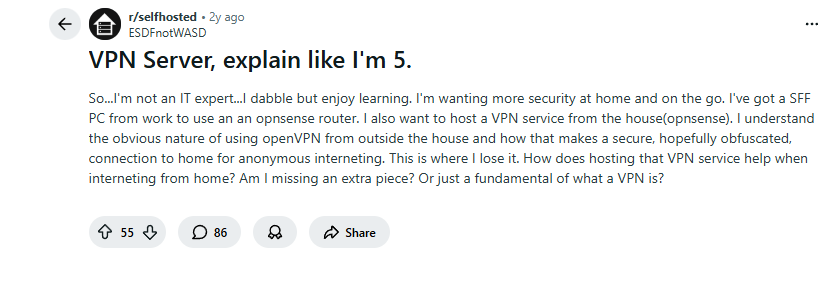
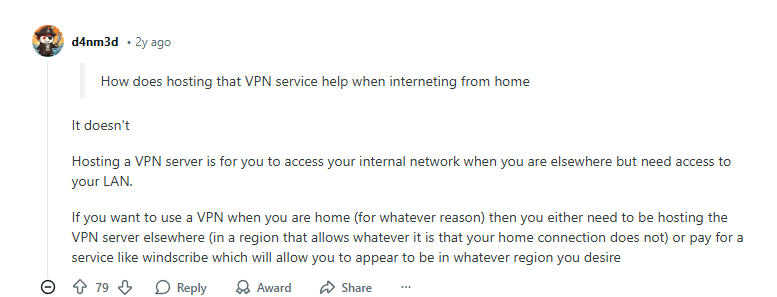
    “I also want to host a VPN service from the house… This is where I lose it. How does hosting that VPN service help when interacting from home? Am I missing an extra piece? Or just a fundamental of what a VPN is?”

    This user has stumbled upon the critical distinction between two different things that share the “VPN” name: a VPN Client (what you use to connect to a service) and a VPN Server (what you connect to). Unraveling this confusion is the key to understanding how modern privacy tools work.

    Reddit’s Real-World Explanations that actually make sense

    1. The “Two Types of VPN” Breakdown (What is a VPN Server)

    The most crucial clarification comes from Reddit user d4nm3d, who cut straight to the point in response to the confused user:

    “How does hosting that VPN service help when interacting from home? It doesn’t. Hosting a VPN server is for you to access your internal network when you are elsewhere… If you want to use a VPN when you are home… then you… pay for a service… which will allow you to appear to be in whatever region you desire.”

    Why This Matters: This is the “Aha!” moment. A server you host at home lets you securely tunnel into your own network. A server provided by a VPN service like NordVPN or Surfshark lets you tunnel out to the internet through a different location.

    2. The “Explain Like I’m 5” Simple Analogy (What is a VPN Server)

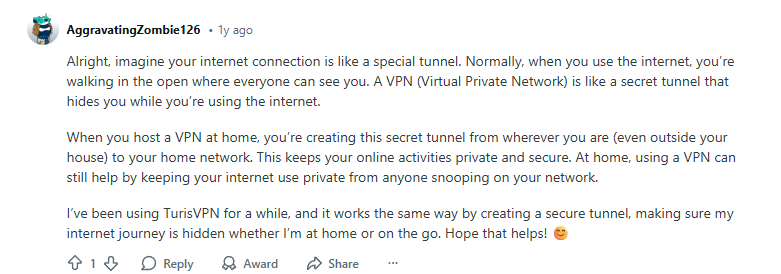
    For a truly simple explanation, user AggravatingZombie126 used a perfect analogy:

    “Alright, imagine your internet connection is like a special tunnel. Normally, when you use the internet, you’re walking in the open where everyone can see you. A VPN (Virtual Private Network) is like a secret tunnel that hides you while you’re using the internet.”

    This makes it clear: the VPN server is the destination of that secret tunnel. It’s the secure building you enter, which then lets you exit onto the public internet from a different, hidden doorway.

    3. The Technical Deep-Dive (What is a VPN Server)

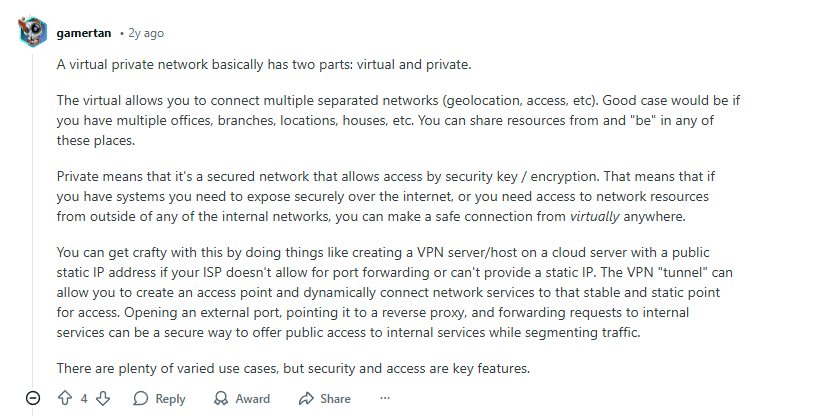
    For those who want to understand the “virtual” and “private” parts, user gamertan provided a brilliant, clear breakdown:

    “A virtual private network basically has two parts: virtual and private. The virtual allows you to connect multiple separated networks… Private means that it’s a secured network that allows access by security key / encryption.”

    This explains the technology’s power: it creates a secure, virtual network bridge over the public internet, making it both flexible and private.

    4. The DIY vs. Paid Service Debate (What is a VPN Server)

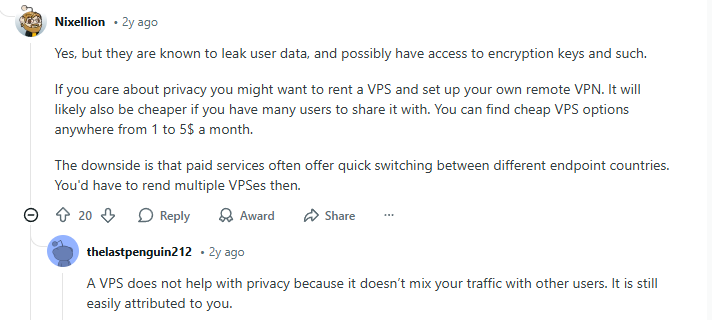
    A common follow-up question is, “Why not just host my own server on a cloud computer (VPS)?” Reddit users Nixellion and thelastpenguin212 perfectly capture both sides of this debate:

    “If you care about privacy you might want to rent a VPS and set up your own remote VPN… The downside is that paid services often offer quick switching between different endpoint countries.”

    “A VPS does not help with privacy because it doesn’t mix your traffic with other users. It is still easily attributed to you.”

    The Reality: A paid, commercial VPN service provides privacy through anonymity in a crowd. Your traffic is mixed with thousands of other users on shared servers. A private VPS is only private from your ISP; all the traffic on it is still uniquely yours, offering no anonymity.

    Step-by-Step: How a Commercial VPN Server Protects You

    1. Your Data is Encrypted (What is a VPN Server): When you connect to an app like NordVPN or Surfshark, it encrypts all data from your device.
    2. Connection to Server (What is a VPN Server): This encrypted data is sent through a secure “tunnel” to the VPN server.
    3. IP Address Swap (What is a VPN Server): The server receives your data, decrypts it, and sends it to the public internet using its own IP address, not yours.
    4. Data is Returned (What is a VPN Server): The website sends data back to the VPN server, which encrypts it again and sends it back through the tunnel to you.

    Best VPNs Based on Their Server Networks in 2025

    The quality of a VPN’s servers is a major differentiator. Here’s how the top providers compare.

    1. NordVPN: Most Advanced Server Network (What is a VPN Server)

    Why its servers win: NordVPN doesn’t just have a large network; it has specialized servers for specific tasks. This includes Obfuscated Servers to bypass censorship and P2P-optimized servers for torrenting, all running on a private, colocated network for extra security.
    Ideal for: Users who need top-tier security, speed, and specialized feature
    s.

    Click Here

    *Get Black Friday Sale Now*

    2. Surfshark: Best for Consistent Global Coverage (What is a VPN Server)

    Why its servers win: Surfshark offers a massive and consistently reliable server network that includes Static IP servers and MultiHop (double VPN) servers. Its clear, simple app makes it easy to find and connect to the best server.
    Ideal for: Travelers and users who need reliable connections across many countries.

    Click Here

    *Get Black Friday Sale Now*

    3. Proton VPN: Most Secure and Trustworthy Servers (What is a VPN Server)

    Why its servers win: Proton VPN operates a core network of own-owned, bare-metal servers in secure, underground data centers. All servers use full-disk encryption and are located in privacy-friendly jurisdictions like Switzerland.
    Ideal for: Users with the highest security demands who value transparency and physical server control.

    Click Here

    *Get Black Friday Sale Now*

    Server Selection Checklist: How to Pick the Best One

    ✅ For Speed (What is a VPN Server):

    ✅ For Streaming (What is a VPN Server):

    ✅ For Torrenting (What is a VPN Server):

    ✅ For Privacy (What is a VPN Server):

    Frequently Asked Questions

    Q: What’s the difference between a physical and virtual server (What is a VPN Server)?
    A: A physical server is a single, dedicated machine. A virtual server is one physical machine split into multiple virtual ones. For best security and performance, choose a VPN that uses physical (bare-metal) servers.

    Q: Can a VPN server be hacked (What is a VPN Server)?
    A: While possible, it’s extremely unlikely with a reputable provider. Their servers are hardened against attacks and don’t store your personal data or browsing history.

    Q: Why does server distance affect my speed (What is a VPN Server)?
    A: Data takes time to travel. The farther the server, the more milliseconds of “lag” (latency) are added, which can slow down your connection. Always connect to the nearest server for the best speed.

    Q: How many servers do I need (What is a VPN Server)?
    A: More servers generally mean less load and better speeds per user. However, quality (speed, security, and ownership) is more important than sheer quantity.

  • How to Bypass VPN Blocks at College in 2025 – Useful Guide

    Frustrated by a “VPN Not Connected” error on your school or work network? Discover the methods to bypass VPN blocks and reclaim your privacy.

    Quick Answer: How to Bypass VPN Blocks
    Switch to an obfuscated server (often called Stealth or Camouflage mode) in your VPN app. If that fails, manually change your VPN protocol to OpenVPN over TCP ports 443 or 80, which makes your VPN traffic look like regular HTTPS web browsing.


    The Universal VPN Block Problem (Bypass VPN Blocks)

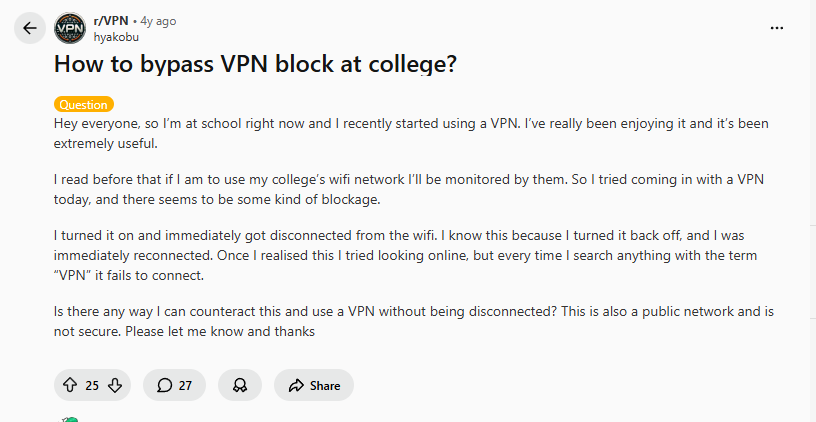
    There’s nothing more frustrating than firing up your VPN for privacy, only to be instantly disconnected from the network. This is a common defense mechanism on restricted networks at schools, workplaces, and in certain countries, designed to detect and block standard VPN traffic.

    The panic and confusion are perfectly captured by this Reddit user’s plea for help:

    “I turned it on and immediately got disconnected from the wifi. I know this because I turned it back off, and I was immediately reconnected. Once I realised this I tried looking online, but every time I search anything with the term ‘VPN’ it fails to connect.”
    This user hit a double-whammy: a deep packet inspection (DPI) firewall that killed their VPN connection, and a DNS filter that blocked all searches for VPN-related terms. Their situation is a textbook case of advanced network censorship.

    Reddit’s Real-World Bypass Methods That Actually Work

    1. The Obfuscation Method: Disguise Your VPN Traffic (Bypass VPN Blocks)

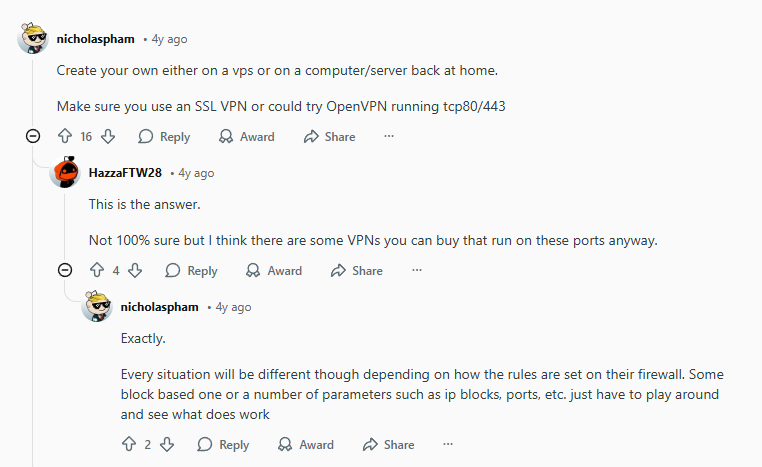
    The most effective solution is to use a VPN that offers obfuscation. This technology wraps your VPN traffic in an layer of encryption that makes it indistinguishable from the regular, secure traffic that flows to websites (HTTPS). As one user, nicholaspham, expertly advised:

    “Create your own either on a vps or on a computer/server back at home. Make sure you use an SSL VPN or could try OpenVPN running tcp80/443.”

    Another user, HazzaFTW28, correctly pointed out the convenience of modern services:

    “Not 100% sure but I think there are some VPNs you can buy that run on these ports anyway.”

    Why This Works: Port 80 is for regular HTTP web traffic, and port 443 is for HTTPS (secure web traffic). By routing your VPN through these ports, you trick the network firewall into thinking you’re just browsing normal websites, not using a VPN.

    2. The “Ask Why” Method: The Official Route (Bypass VPN Blocks)

    While often overlooked, the direct approach can sometimes yield results, especially in an educational setting. User bengsig suggested a pragmatic, if idealistic, solution:

    “If using VPN is relevant for what you do at school, discuss with their admin, and I’m sure they will find a solution. Otherwise, don’t use school network for non-school related things.”

    The Reality: For students working on sensitive research or journalists using a university network, this is a valid argument. However, for most, this is not a practical solution for everyday privacy.

    3. The Simple Server-Switch Trick (Bypass VPN Blocks)

    Sometimes, the block isn’t on VPN traffic in general, but on specific IP addresses known to belong to VPN providers. As a user succinctly put it:

    “Try connecting to a different server if your university for some reason have blocked specific server(s).”

    This is the easiest first step. If one server is blocked, another might not be on the network’s blacklist yet.

    Step-by-Step Guide to Bypassing VPN Blocks

    Step 1: Enable Obfuscation or Stealth Mode (Bypass VPN Blocks)

    1. Open your VPN application.
    2. Go to Settings > Advanced or Protocol.
    3. Look for and enable “Obfuscated Servers,” “Stealth,” or “Camouflage Mode.”
    4. Connect to a server as usual. The obfuscation will happen automatically.

    Step 2: Manually Configure OpenVPN if no obfuscation setting (Bypass VPN Blocks)

    1. In your VPN app, switch your protocol to OpenVPN (TCP).
    2. You may need to manually import configuration files from your VPN provider’s website.
    3. Choose a configuration that specifies port 443 or port 80.

    Step 3: Change Your DNS Servers (Bypass VPN Blocks)

    1. On your device, go to network settings.
    2. Manually set your DNS to a public service like Cloudflare (1.1.1.1) or Google (8.8.8.8).
    3. This prevents your school’s DNS from blocking your VPN searches and can help bypass certain blocks.

    Step 4: Use a Mobile Hotspot (Bypass VPN Blocks)
    If all else fails, the most effective bypass is to avoid the restricted network entirely. Use your phone’s mobile data as a hotspot to connect your laptop.

    Best VPNs for Bypassing Blocks in 2025

    When you’re facing a sophisticated firewall, you need a VPN with dedicated anti-censorship features.

    1. NordVPN: Best Obfuscation for Beginners (Bypass VPN Blocks)

    Why it wins: NordVPN’s “Obfuscated Servers” are a one-click solution. Just enable the specialty server list and connect. It automatically disguises your traffic without any complex configuration.
    Ideal for: Students and travelers who need a reliable, easy-to-use solution.

    Click Here
    *Get Promotion Now*

    2. Surfshark: Best for Multi-Device Bypassing (Bypass VPN Blocks)

    Why it wins: Surfshark’s “Camouflage Mode” and “NoBorders Mode” automatically activate when a restriction is detected. With unlimited simultaneous connections, you can protect every device you use on the school network.
    Ideal for: Users with multiple devices who need automatic protection.

    Click Here
    *Get Promotion Now*

    3. Proton VPN: Most Advanced Stealth Technology (Bypass VPN Blocks)

    Why it wins: Proton VPN’s “Stealth” protocol is specifically designed to bypass the most aggressive firewalls, like those in China. It’s open-source and built for the most challenging censorship environments.
    Ideal for: Users in highly restrictive countries or those who need the most powerful, trustworthy stealth technology.

    Click Here
    *Get Promotion Now*

    Bypass Checklist: Regain Your Privacy

    ✅ Before You Start (Bypass VPN Blocks):

    • Identify the type of block (instant disconnect, specific sites blocked).
    • Download your VPN’s manual OpenVPN configuration files.
    • Have a mobile hotspot ready as a backup.

    ✅ Troubleshooting Steps (Bypass VPN Blocks):

    • First, try switching to a different server.
    • Second, enable the obfuscation/stealth feature in your VPN app.
    • Third, manually configure OpenVPN on port 443.
    • Finally, change your device’s DNS settings.

    ✅ Final Test (Bypass VPN Blocks):

    Frequently Asked Questions

    Q: Is it legal to bypass a school or work VPN block (Bypass VPN Blocks)?
    A: It may violate the network’s terms of service. Always review the acceptable use policy. The primary legal risk is in countries where VPN use itself is heavily restricted or illegal.

    Q: Why does using port 443 work (Bypass VPN Blocks)?
    A: Port 443 is used for HTTPS, the protocol for secure websites. Blocking it would break most of the internet, so network admins rarely do, allowing your disguised VPN traffic to slip through.

    Q: What if no methods work (Bypass VPN Blocks)?
    A: The network may be using highly advanced DPI. In this case, your best option is to use your own mobile data connection or a personal travel router with a pre-configured VPN.

    Q: Can a free VPN bypass these blocks (Bypass VPN Blocks)?
    A: It’s highly unlikely. Free VPNs rarely invest in the advanced obfuscation technology required to bypass modern firewalls, and their IP addresses are often the first to be blacklisted.

    Also check out how to solve the network proxy error that occurs after using a VPN.

  • How to Set Up a VPN for Router in 2025 (The Useful Guide)

    Tired of setting up a VPN on every single device? Learn how to protect your entire home network by installing a VPN for router.

    Quick Answer: Can You Put a VPN on Any Router (VPN for Router)?
    Yes, but your router must support VPN client functionality, either natively (like many ASUS or Netgear models) or by installing custom firmware like DD-WRT. The process involves logging into your router’s admin panel, uploading configuration files from your VPN provider, and activating the connection.


    The Universal Router VPN Problem (VPN for Router)

    Imagine a world where every device in your home—your gaming console, smart TV, weather station, and even your smart lights—is automatically protected by a VPN without you ever having to install an app. This isn’t a futuristic dream; it’s entirely possible by configuring your VPN at the router level.

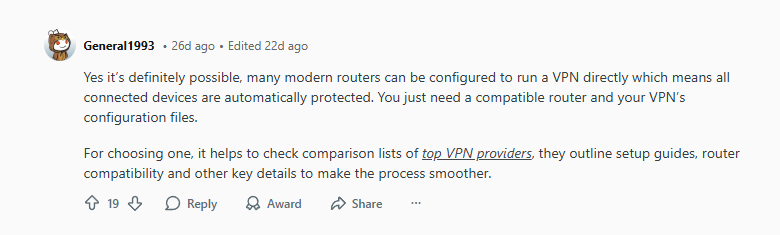
    The challenge? Most standard ISP-issued routers don’t support this feature out of the box. This leads to widespread confusion, as seen by this common question from Reddit user General1993:

    “Yes it’s definitely possible, many modern routers can be configured to run a VPN directly which means all connected devices are automatically protected. You just need a compatible router and your VPN’s configuration files.”

    This simple answer unlocks a world of whole-home privacy. Let’s dive into the real-world advice from users who have successfully turned their routers into VPN powerhouses.

    Reddit’s Real-World Router Setup Advice

    1. The Custom Firmware Power-User Method (VPN for Router)

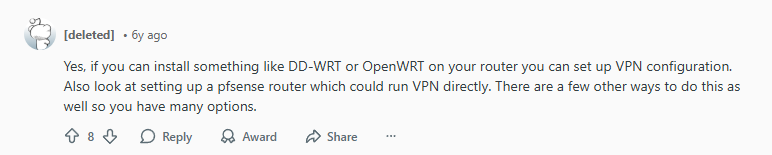
    For those with older or more basic routers, the path to VPN functionality often involves custom firmware. As one seasoned user explained six years ago, a solution that remains perfectly relevant today:

    “Yes, if you can install something like DD-WRT or OpenWRT on your router you can set up VPN configuration. Also look at setting up a pfsense router which could run VPN directly. There are a few other ways to do this as well so you have many options.”

    Why This Works: DD-WRT and OpenWRT are open-source firmware that replace your router’s stock software, unlocking advanced features like a built-in VPN client. A pfsense router is a dedicated firewall device that offers enterprise-grade control, including powerful VPN capabilities.

    2. The Speed & Hardware Question (VPN for Router)

    A major concern for users is whether a router can handle the encryption overhead of a VPN without destroying their internet speeds. One user pointed out a common limitation with smaller travel routers:

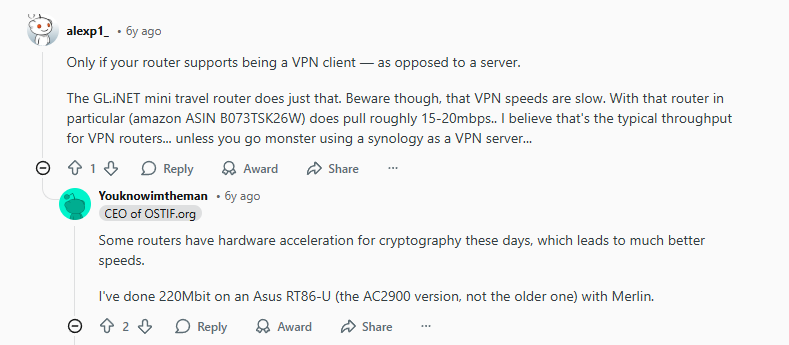
    “Beware though, that VPN speeds are slow. With that router in particular… does pull roughly 15-20mbps.. I believe that’s the typical throughput for VPN routers…”

    But another user, Youknowintheman, provided a crucial counterpoint that highlights the importance of modern hardware:

    “Some routers have hardware acceleration for cryptography these days, which leads to much better speeds. I’ve done 220Mbit on an Asus RT86-U… with Merlin.”

    The Takeaway: Your router’s CPU is critical. For high-speed VPN connections, you need a router with strong hardware and, ideally, cryptographic acceleration.

    3. The “Why It’s Awesome” – Granular Control (VPN for Router)

    Once set up, a router-level VPN offers control that desktop apps can’t match. User completion97 highlighted a killer feature: the ability to route specific devices or websites outside the VPN tunnel.

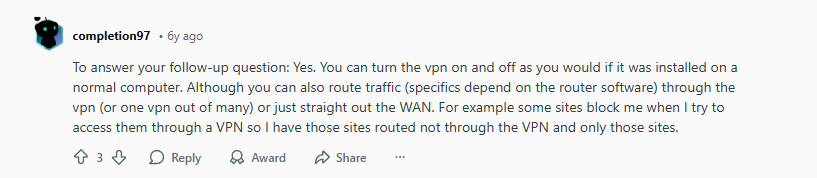
    “Although you can also route traffic… through the vpn (or one vpn out of many) or just straight out the WAN. For example some sites block me when I try to access them through a VPN so I have those sites routed not through the VPN and only those sites.”

    This means you can have your Smart TV stream international content through a VPN while your work computer connects directly to the internet for maximum speed and access, all simultaneously on the same network.

    4. A Modern Success Story (VPN for Router)

    Finally, a recent post from user Fit-Interview-3886 confirms that the process is more accessible than ever, thanks to manufacturers building in support:

    “Yeah, I do this at home. It’s totally possible, but your router has to support VPN client mode…not just VPN passthrough. I use an Asus router with built-in OpenVPN support, so I just uploaded my VPN provider’s config file, entered my login, and the whole network goes through the VPN automatically.”

    This is the ideal scenario: a consumer-friendly router with native VPN client support, making setup a matter of a few clicks.

    Step-by-Step Router VPN Setup Guide

    Before You Begin:

    1. Check Router Compatibility (VPN for Router): See if your router supports VPN client mode (look for OpenVPN or WireGuard settings) or is compatible with DD-WRT.
    2. Choose a VPN Provider (VPN for Router): Ensure your VPN supports router setups and provides OpenVPN configuration files.
    3. Gather Login Details (VPN for Router): Have your VPN service username and password ready (this is often different from your account login).

    Step 1: Access Your Router’s Admin Panel (VPN for Router)

    1. Find your router’s IP address (e.g., 192.168.1.1).
    2. Enter it into your web browser’s address bar.
    3. Log in with your admin credentials.

    Step 2: Locate the VPN Client Section (VPN for Router)

    1. Navigate to the “Advanced Settings,” “VPN,” or “WAN” section.
    2. Look for “VPN Client,” “OpenVPN Client,” or “WireGuard Client.”
    3. Select “Add Profile” or “Create New Configuration.”

    Step 3: Upload Configuration File (VPN for Router)

    1. Download the OpenVPN configuration files (.ovpn) from your VPN provider’s website.
    2. In your router’s admin panel, upload the .ovpn file for the server you want.
    3. Enter your VPN service username and password in the designated fields.

    Step 4: Activate and Connect (VPN for Router)

    1. Save the configuration.
    2. Return to the main VPN client screen and toggle the connection to “ON.”
    3. Your router may restart. Once it reboots, all connected devices should be protected.

    Best VPNs for Router Installation in 2025

    Not all VPNs are equally suited for routers. Here are the top picks based on ease of setup, support, and performance.

    1. NordVPN: Most User-Friendly Router App (VPN for Router)

    Why it’s great for routers: NordVPN offers a dedicated router app for specific ASUS and FlashRouter models, making installation a simple, guided process. Their Meshnet feature can even turn a device on your network into a personal VPN exit node.
    Ideal for: Users who want the simplest possible setup without manual configuration.

    Click Here
    *Get Promotion Now*

    2. Surfshark: Best for Unlimited Devices (VPN for Router)

    Why it’s great for routers: With one Surfshark subscription covering unlimited devices, installing it on your router is a no-brainer. It protects every device in a large household without needing additional licenses.
    Ideal for: Families and users with dozens of smart home devices.

    Click Here
    *Get Promotion Now*

    3. Proton VPN: Best for Technical Performance & Security (VPN for Router)

    Why it’s great for routers: Proton VPN provides excellent OpenVPN and WireGuard configuration files and detailed setup guides. Their VPN Accelerator technology can help maximize speeds on capable router hardware.
    Ideal for: Power users who want the highest level of security and performance from their router.

    Click Here

    *Get Promotion Now*

    Router VPN Maintenance Checklist

    ✅ Initial Setup (VPN for Router):

    • Verify your external IP address has changed after connection.
    • Test internet speed to establish a baseline.
    • Check for DNS leaks.

    ✅ Weekly (VPN for Router):

    • Reboot your router to clear cache and ensure stability.
    • Check for router firmware updates.

    ✅ Monthly (VPN for Router):

    • Test VPN connection speed and compare to baseline.
    • Verify your VPN provider has not updated their configuration files.
    • Check for IP and DNS leaks again.

    Frequently Asked Questions (VPN for Router)

    Q: Will a VPN for router slow down my entire internet?
    A: Yes, typically by 20-50%, due to encryption overhead. The impact is less noticeable on powerful routers with hardware acceleration.

    Q: Can I use my normal internet and VPN at the same time?
    A: Yes! Through a feature called split-tunneling (on supported routers), you can designate specific devices or websites to bypass the VPN.

    Q: What’s the difference between a VPN client and VPN passthrough?
    A: VPN client mode allows your router to create a VPN connection. VPN passthrough allows devices behind the router to create their own VPN connections—it does not mean the router itself is using a VPN.

    Q: My router doesn’t support VPNs. What are my options?
    A: You can flash custom firmware (if available), purchase a pre-configured VPN router from brands like FlashRouter, or use a plug-in travel router (like GL.iNet) that has a built-in VPN client.

    Also check out the comparison between free and paid VPNs for a clearer understanding.

  • Surfshark vs NordVPN vs Proton VPN: Kill Switch Face-Off (2025)

    Which VPN truly protects you from IP leaks when your connection fails? We put the kill switch face-off from Surfshark, NordVPN, and Proton VPN to the test.

    Quick Answer: Which VPN Has the Best Kill Switch (Kill Switch Face-Off)?
    Proton VPN offers the most robust and configurable kill switch, with a permanent system-level block. NordVPN provides a very reliable and user-friendly solution for most users. Surfshark’s kill switch is effective but can be less consistent on unstable networks, making it better for general use than high-risk scenarios.


    The Kill Switch Problem: Why Your VPN Might Be Lying to You (Kill Switch Face-Off)

    A kill switch is not a bonus feature; it’s your fundamental right to privacy. It’s the emergency brake that should slam down the second your VPN tunnel collapses, preventing your real IP address from being exposed to your ISP and any watching eyes.

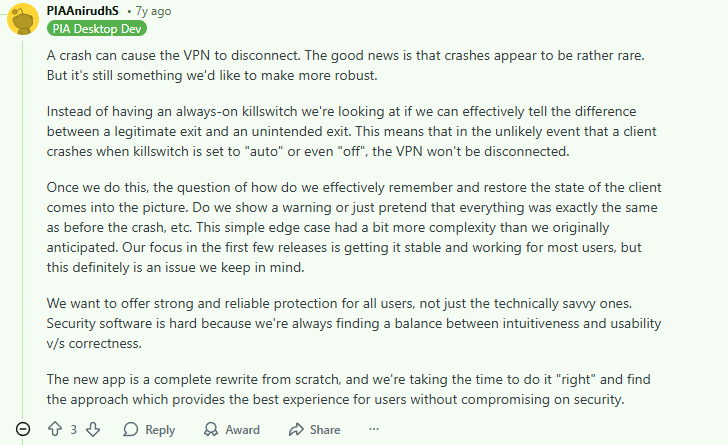
    But not all emergency brakes are created equal. The core problem was perfectly summarized by a frustrated user trying to configure Private Internet Access:

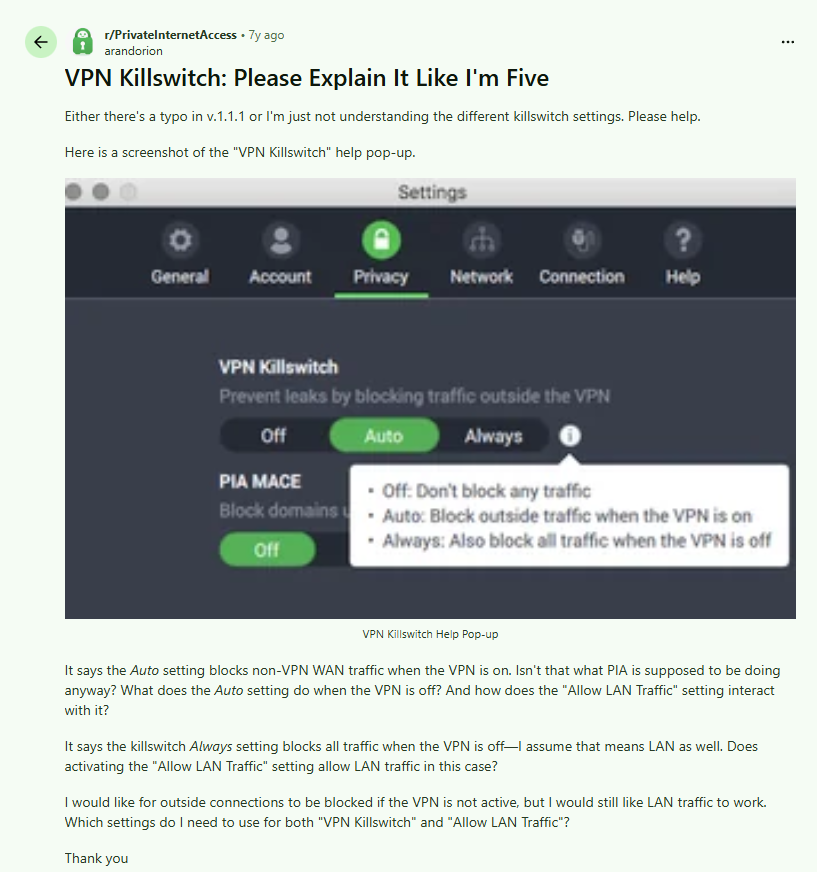
    “Either there’s a typo or I’m just not understanding the different kill switch settings. Please help. It says the Auto setting blocks non-VPN traffic when the VPN is on. Isn’t that what the VPN is supposed to be doing anyway?”

    This confusion is a privacy risk. When users don’t understand the settings, they can’t trust the protection. We’re cutting through the marketing to see how Surfshark, NordVPN, and Proton VPN handle this critical feature.

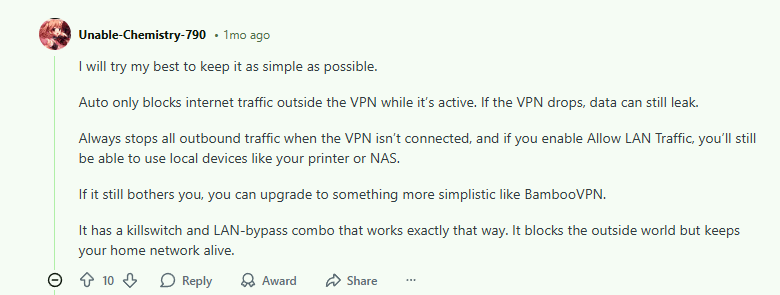
    A user also stated that a kill switch can be understood by:

    Reddit’s Real-World Kill Switch Experiences

    1. The NordVPN “Set It and Forget It” Approach (Kill Switch Face-Off)

    NordVPN users often praise its reliability, but the kill switch’s behavior is key. One user highlighted the subtle difference between an app-level and system-level kill switch:

    “Nord’s kill switch works well, but you have to know what you’re getting. The app kill switch is on by default and works great if the app is running. But if the Nord app itself crashes or you quit it, the internet comes back. You need to enable the ‘Always-on VPN’ and ‘Block connections without VPN’ in your system settings for a true hard kill.”

    This reveals a crucial point: NordVPN’s primary protection is application-dependent. For ironclad security, you must layer it with your device’s native always-on VPN feature.

    2. Proton VPN: The Gold Standard for Paranoid Users (Kill Switch Face-Off)

    Proton VPN is consistently recommended on technical subreddits for its uncompromising approach. A user on r/PrivacyToolsIO explained:

    “Switched to Proton VPN specifically for the kill switch. It’s a permanent firewall rule. Once you enable it, there is no internet without the VPN. Not if the app crashes, not if you reboot, not if you quit it. It’s the only one I trust for torrenting or sensitive work. You have to manually disable it to get your regular connection back.”

    This aligns with Proton’s ethos. Their kill switch isn’t just a feature within the app; it’s a low-level system change that physically severs the connection until the VPN is fully secured.

    3. Surfshark: The Modern & Streamlined Protector (Kill Switch Face-Off)

    Surfshark’s kill switch is designed for a seamless user experience, which is a major reason for its popularity. A user on r/VPN highlighted this straightforward effectiveness:

    “I never have to think about Surfshark’s kill switch. It’s just on and working. It’s perfect for my family because it runs quietly in the background, protecting all our devices without any complicated setup or confusing settings to configure.”

    This feedback is key. Surfshark’s philosophy is robust protection without complexity, making top-tier privacy accessible to everyone, not just the tech-savvy.

    Step-by-Step Kill Switch Setup Guide for All Three VPNs

    Step 1: For NordVPN – The Balanced Choice (Kill Switch Face-Off)

    1. Open the NordVPN app.
    2. Go to Settings > Kill Switch.
    3. Enable the Internet Kill Switch.
    4. For maximum protection on Windows/Android: Also enable the App Kill Switch to block specific apps if the VPN drops.
    5. Crucial Final Step: On your device, go to system network settings and enable “Always-on VPN” and “Block connections without VPN” to create a system-level failsafe.

    Step 2: For Proton VPN – The Fort Knox Method (Kill Switch Face-Off)

    1. Open Proton VPN.
    2. Go to Settings > Connection.
    3. Enable Kill Switch (on Windows, this may be called “Always-on Kill Switch”).
    4. Enable “Non-VPN traffic” to Block for the strictest protection.
    5. Note: Once enabled, you will have no internet access until you successfully connect to a Proton VPN server.

    Step 3: For Surfshark – The Simple Setup (Kill Switch Face-Off)

    1. Open the Surfshark app.
    2. Go to Settings > VPN Settings.
    3. Enable the Kill Switch.
    4. (Optional) Enable Bypasser (Split-tunneling) to choose which apps are protected by the kill switch.

    The Verdict: Which VPN Kill Switch Should You Trust?

    After analyzing user reports and technical specifications, here’s the final ranking.

    1. NordVPN: Best for Most Users (Kill Switch Face-Off)

    Why it wins: NordVPN strikes the best balance between robust protection and usability. Its kill switch is reliable, and the addition of an app-level kill switch provides granular control. When combined with system-level “Always-on VPN,” it becomes nearly as robust as Proton’s.

    Click Here
    *Get Black Friday Sale Now*

    2. Proton VPN: Best for Maximum Security (Kill Switch Face-Off)

    Why it wins: If your primary concern is that your IP address must never, ever be exposed, Proton VPN is unbeatable. Its permanent firewall-based kill switch is the technical gold standard. The trade-off is less convenience, as you must disable it to use the internet without the VPN.

    Click Here
    *Get Black Friday Sale Now*

    3. Surfshark: Best for General Use and Value (Kill Switch Face-Off)

    Why it ranks here: Surfshark’s kill switch is good and will protect most users in most situations. With the ease-of-use features, it is suitable for anyone that doesn’t want a complex setup.

    Click Here
    *Get Black Friday Sale Now*

    Prevention Checklist: Test Your Kill Switch!

    ✅ Initial Setup (Kill Switch Face-Off):

    • Enable the kill switch before connecting to a server.
    • Restart your device and see if the kill switch automatically re-engages.
    • Verify the setting survives app updates.

    ✅ Weekly Test (Kill Switch Face-Off):

    • Connect to a VPN server.
    • Start a continuous ping (e.g., ping google.com in Command Prompt).
    • Disconnect the VPN manually. The ping should immediately fail and not resume.

    ✅ Monthly Stress Test (Kill Switch Face-Off):

    • Simulate a crash by force-quitting the VPN app from Task Manager or Activity Monitor. Your internet should die.
    • Test on different networks (home Wi-Fi, mobile hotspot).

    Frequently Asked Questions

    Q: Can a kill switch completely fail (Kill Switch Face-Off)?
    A: Yes. If the VPN application crashes in a specific way or there’s a conflict with a firewall, the kill switch might not engage. This is why Proton’s system-level approach is considered more reliable.

    Q: I have Surfshark/NordVPN. Should I be worried (Kill Switch Face-Off)?
    A: For the vast majority of users, no. Both have effective kill switches. For high-risk scenarios, follow our step-by-step guide to enable the additional system-level protection on your device.

    Q: Does the kill switch work on mobile (Kill Switch Face-Off)?
    A: Yes, but it’s often integrated into the “Always-on VPN” or “Sticky VPN” feature in Android/iOS settings. Ensure this is enabled for full protection.

    Q: What’s the single most important takeaway (Kill Switch Face-Off)?
    A: Never assume your kill switch is working. Test it regularly. Your privacy depends on a feature you hope you never have to use.

    Also check out our post that explains about how to fix the network proxy error.

  • Why Does My VPN Keep Disconnecting? The Useful Fix Guide (2025)

    Frustrated by a VPN keep disconnecting? Discover the real reasons behind VPN dropouts and learn proven fixes that keep your connection stable and secure.

    Quick Answer: How to Fix VPN Keep Disconnecting
    Switch your VPN protocol to OpenVPN (TCP) for stability, disable battery optimization for your VPN app, update your network drivers, and check for software conflicts with antivirus or firewall applications. For persistent issues, contact your VPN’s support team.


    The Universal VPN Disconnect Problem (VPN Keep Disconnecting)

    VPN disconnections are one of the most common—and dangerous—issues users face. As one frustrated NordVPN user discovered:

    Tomochan-o-manko: “My NordVPN loves to disconnect every few hours or most of the time even a few minutes. It’s not a major issue to me, since it’s only disconnecting and not crashing the software. But still kinda annoying.”

    The danger isn’t just the inconvenience—it’s the security risk when your VPN drops without warning, exposing your real IP address and data, especially when your VPN keep disconnecting.


    Reddit’s Real-World Solutions That Actually Work (VPN Keep Disconnecting)

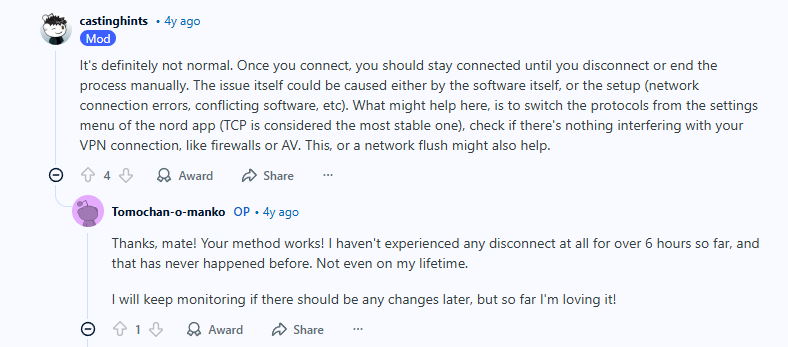
    1. The Protocol Switch Fix

    The most common and effective solution comes from changing your connection protocol:

    castinghints (Mod): “What might help here is to switch the protocols from the settings menu of the nord app (TCP is considered the most stable one).”

    Tomochan-o-manko (OP): “Thanks, mate! Your method works! I haven’t experienced any disconnect at all for over 6 hours so far, and that has never happened before.”

    Why This Works: OpenVPN (TCP) prioritizes stability over speed, making it less likely to drop connections on unstable networks.

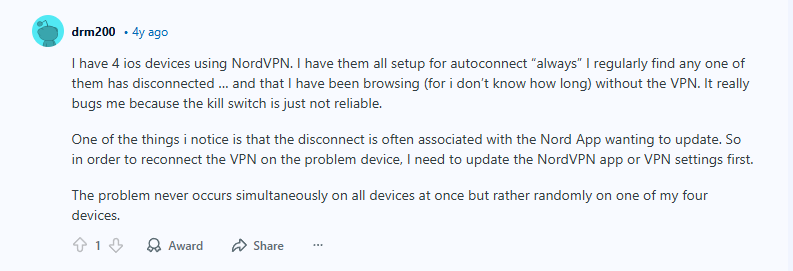
    2. The Kill Switch Reliability Issue

    Many users discover their kill switch—the feature meant to protect them during disconnects—isn’t reliable:

    drm200: “I regularly find any one of them has disconnected… without the VPN. It really bugs me because the kill switch is just not reliable. One of the things I notice is that the disconnect is often associated with the Nord App wanting to update.”

    The Reality (VPN Keep Disconnecting): Kill switches can fail, especially during app updates or system resource constraints.


    Step-by-Step Troubleshooting Guide (VPN Keep Disconnecting)

    Step 1: Change Your VPN Protocol

    1. Open your VPN application
    2. Go to Settings → Protocol
    3. Switch to OpenVPN (TCP) or IKEv2
    4. Test your connection stability

    Step 2: Check for Software Conflicts

    Common conflicts to investigate:

    Step 3: Update Everything

    • VPN application to latest version
    • Network adapter drivers
    • Operating system security patches

    Step 4: Mobile-Specific Fixes

    • Disable battery optimization for your VPN app
    • Turn off adaptive battery or power saving modes
    • Set your VPN to “always on” in connection settings

    When to Contact Support (VPN Keep Disconnecting)

    As multiple Reddit users suggested, sometimes professional help is needed:

    kaluna99: “Mine does not do that. It’s constantly on. Maybe contact support for help.”

    Another user: “Check if your internet connection is stable without a VPN if you say that this happened before with some other VPN. And then you can contact Nord’s support.”

    Contact support if (VPN Keep Disconnecting):

    • Disconnects happen across multiple networks
    • All troubleshooting steps fail
    • The issue affects multiple devices
    • You suspect account or server-side problems

    Recommended Stable VPN Providers (VPN Keep Disconnecting)

    1. NordVPN (Most Reliable)

    Why it’s stable: NordLynx protocol, 6,000+ servers, and dedicated obfuscated servers.

    Despite the Reddit reports, NordVPN’s current versions have significantly improved stability since these 4-year-old reports.

    Click Here
    *Get Black Friday Sale Now*

    2. Surfshark (Best Connection Persistence)

    Why it’s stable: WireGuard implementation, unlimited connections, and reliable auto-connect features.

    Ideal for: Users who need consistent across multiple devices.

    Click Here
    *Get Black Friday Sale Now*

    3. Proton VPN (Most Technically Stable)

    Why it’s stable: Open-source code, VPN Accelerator technology, and strong focus on reliability.

    Ideal for: Technical users who want maximum control and transparency.

    Click Here
    *Get Black Friday Sale Now*


    Prevention Checklist: Keep Your VPN Connected (VPN Keep Disconnecting)

    ✅ Daily Habits:

    • Check your VPN status before sensitive activities
    • Enable “always-on” VPN setting when available
    • Monitor for app updates regularly

    ✅ Weekly Maintenance:

    • Restart your VPN application
    • Clear DNS cache (ipconfig /flushdns on Windows)
    • Test different server locations

    ✅ Monthly Checkup:

    • Update network drivers
    • Review firewall and antivirus exceptions
    • Test kill switch functionality

    Frequently Asked Questions (VPN Keep Disconnecting)

    Q: How often should a good VPN disconnect?
    A: A quality VPN should maintain a connection for days or weeks without dropping. VPN keep disconnecting daily indicate a problem.

    Q: Can my internet provider cause VPN disconnects?
    A: Yes, some ISPs actively interfere with VPN traffic, causing random disconnections.

    Q: Is OpenVPN (TCP) slower than UDP?
    A: Yes, slightly, but the stability improvement is usually worth the minor speed reduction.

    Q: Should I worry about brief disconnections?
    A: Yes—even brief drops can expose your IP address and browsing activity.


    Final Recommendation (VPN Keep Disconnecting)

    The problem of VPN keep disconnecting is almost always solvable with the right troubleshooting approach. Start with the protocol switch to OpenVPN (TCP), as this single change resolved the issue for the Reddit user who had struggled with disconnects for months.

    If you’ve tried all troubleshooting steps and still experience frequent drops, consider upgrading to a premium VPN known for stability rather than fighting with an unreliable service.

    Click Here
    Most stable VPN with reliable connections

    Remember: A reliable VPN shouldn’t require constant babysitting. Your connection should be “set it and forget it”—secure, stable, and always protecting your privacy.

  • VPN for Banking: Safe or Will Get You Flagged? The 2025 Truth

    Tired of conflicting advice about using VPNs for banking? We analyzed real user experiences to give you the definitive answer on whether VPNs protect your finances or trigger security freezes.

    Quick Answer: Can You Use a VPN for Banking?
    Yes, but choose your VPN carefully. Banks often flag connections from data center IPs (common with cheap VPNs). Use premium services like NordVPN or ProtonVPN or Surfshark with dedicated residential IP options. For US banks while abroad, keep your VPN set to your home state and maintain a US non-VOIP phone number for 2FA.


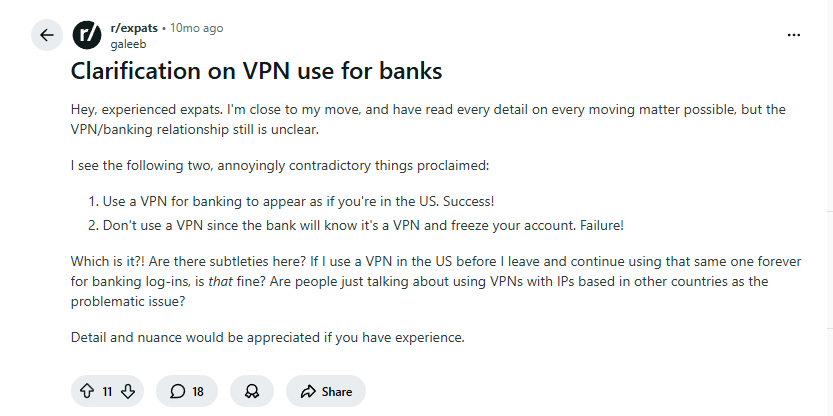
    The Great VPN Banking Debate: Security vs. Suspicion (VPN for Banking)

    The core conflict around VPNs and banking is perfectly captured by this Reddit user’s frustration:

    Variables: “I see the following two, annoyingly contradictory things proclaimed: 1. Use a VPN for banking to appear as if you’re in the US. Success! 2. Don’t use a VPN since the bank will know it’s a VPN and freeze your account. Failure! Which is it?!”

    This confusion stems from one key fact: not all VPNs are equal in the eyes of bank security systems.


    What Reddit Users Discovered: Real-World Experiences (VPN for Banking)

    1. It Depends on Your Bank and VPN

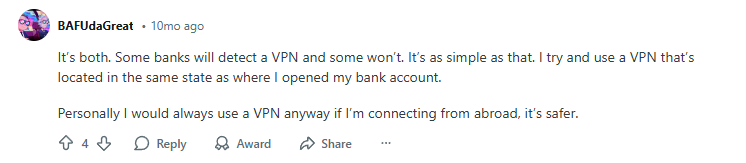
    BATUdaGreat: “It’s both. Some banks will detect a VPN and some won’t. It’s as simple as that. I try and use a VPN that’s located in the same state as where I opened my bank account. Personally I would always use a VPN anyway if I’m connecting from abroad, it’s safer.”

    Key Insight: Geographic consistency matters. Connecting through a server in your account’s home state appears more natural to bank security systems.

    2. The GPS Factor: What Your VPN Can’t Hide

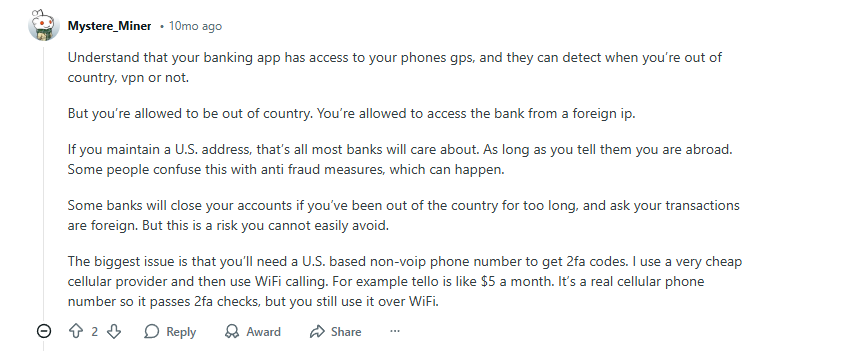
    Mystere_Miner: “Understand that your banking app has access to your phones gps, and they can detect when you’re out of country, vpn or not. But you’re allowed to be out of country. You’re allowed to access the bank from a foreign ip.”

    Critical Understanding (VPN for Banking):

    • VPNs mask your IP address and network location
    • VPNs cannot hide your phone’s GPS data if the banking app has location permissions
    • Most banks allow international access—the issue is sudden location changes and suspicious IPs

    3. The Real Solution: Proper Account Setup

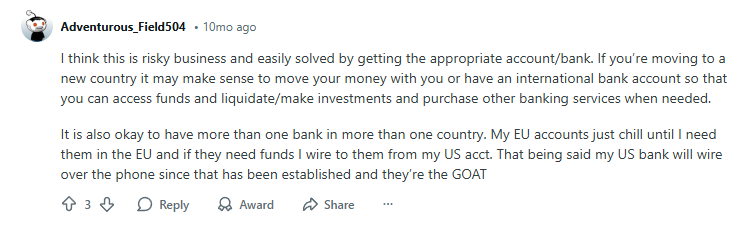
    Adventurous_Field504: “I think this is risky business and easily solved by getting the appropriate account/bank. If you’re moving to a new country it may make sense to move your money with you or have an international bank account…”


    Step-by-Step: How to Safely Use VPNs with Banking (VPN for Banking)

    Step 1: Choose the Right VPN Type (VPN for Banking)

    Avoid free or cheap VPNs that use data center IPs banks automatically flag. Look for:

    • Residential IP options (appear as regular home internet)
    • Dedicated/static IPs (consistent IP address)
    • Strong security protocols (WireGuard, OpenVPN)

    Step 2: Configure Your Connection (VPN for Banking)

    Step 3: Maintain US Presence for Expats (VPN for Banking)

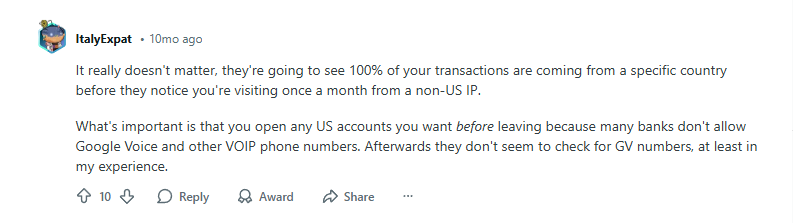
    As one user wisely noted about transaction patterns:

    *”It really doesn’t matter, they’re going to see 100% of your transactions are coming from a specific country before they notice you’re visiting once a month from a non-US IP.”*

    Maintain (VPN for Banking):

    • US mailing address
    • US non-VOIP phone number (Tello, Google Fi)
    • Some domestic transactions

    Recommended VPN for Banking (2025 Tested)

    1. NordVPN (Best Overall)

    Why it works: Dedicated IP option, Threat Protection blocks malicious sites, and consistent US server performance.

    Ideal for: Regular banking users who want extra security without flags.

    Click Here
    *Get Black Friday Sale Now*

    2. Proton VPN (Most Trusted)

    Why it works: Swiss privacy laws, Secure Core servers, and transparent no-logs policy.

    Ideal for: Privacy-focused users and those handling large transactions.

    Click Here
    *Get Black Friday Sale Now*

    3. Surfshark (Best Multi-Device)

    Why it works: CleanWeb feature, unlimited connections, and reliable US servers.

    Ideal for: Families and users with multiple banking apps across devices.

    Click Here
    *Get Black Friday Sale Now*


    Banking VPN Setup Checklist (VPN for Banking)

    ✅ Before You Connect:

    • Choose VPN with dedicated/residential IP options
    • Notify your bank of international travel if abroad
    • Ensure you have US non-VOIP number for 2FA

    ✅ Connection Setup:

    • Connect to server in your banking country
    • Enable kill switch protection
    • Test for DNS leaks at ipleak.net

    ✅ Ongoing Maintenance:

    • Maintain some activity from your home country
    • Keep US address and phone number active
    • Monitor bank alerts and communications

    Frequently Asked Questions (VPN for Banking)

    Q: Will my bank close my account for using a VPN?
    A: Most major banks won’t close accounts solely for VPN use if you maintain a US address and phone number. The risk is higher with online-only banks.

    Q: Can banks see my password with a VPN?
    A: No. VPNs encrypt all data, including passwords. Banks use HTTPS encryption regardless of VPN use.

    Q: Which banks are most VPN-friendly?
    A: Traditional banks (Chase, Bank of America, Wells Fargo) generally handle VPNs better than fintech apps (Chime, Current).

    Q: Should I turn off VPN for mobile banking?
    A: No—the WiFi and cellular encryption benefits remain valuable. Just be aware that GPS may reveal your location regardless.


    Final Recommendation (VPN for Banking)

    Using a VPN with banking is generally safe and recommended for security, especially on public networks. However, success depends on:

    1. Choosing a premium VPN with residential IP options
    2. Maintaining consistent geographic patterns
    3. Keeping US credentials active if banking internationally

    For most users, NordVPN’s dedicated IP feature provides the perfect balance of security and accessibility for financial activities.

    Click Here
    Best VPN for banking with dedicated IP options

    Remember: Your bank’s security and your privacy aren’t mutually exclusive. With the right setup, you can protect both simultaneously.

  • Best VPN for TikTok in 2025: Ultimate Privacy & Security Guide

    Worried about TikTok’s data collection? Discover which VPNs actually protect your privacy and serve as the ultimate Tiktok VPN in 2025 while maintaining perfect video quality and bypassing restrictions.

    Quick Answer: Best VPN for TikTok (Ultimate Tiktok VPN)
    NordVPN
     offers the best balance of security features and streaming performance for TikTok. Surfshark provides excellent value with unlimited connections, while ProtonVPN is privacy-focused. All three successfully bypass TikTok restrictions while encrypting your data from ISPs and hackers.


    Why TikTok Privacy Matters in 2025 (Ultimate Tiktok VPN)

    Recent investigations reveal that TikTok’s data collection extends far beyond basic profile information, capturing device specifications, location data, and behavioral patterns that create comprehensive digital fingerprints. With 170 million monthly US users and ongoing regulatory battles, understanding TikTok privacy has never been more critical.

    Recent statistics show 67% of businesses using TikTok express concerns about data security, highlighting widespread privacy apprehensions about the platform.

    Key Privacy Risks for TikTok Users (Ultimate Tiktok VPN):

    • ISP monitoring and data collection from your internet traffic
    • Vulnerability on unsecured public WiFi networks
    • Third-party tracking through IP address identification
    • Location exposure through network-based geolocation
    • Potential data interception during transmission

    How VPNs Actually Protect TikTok Users (Ultimate Tiktok VPN)

    What VPNs CAN Do:

    “VPNs create encrypted tunnels between your device and the internet, providing several layers of protection that benefit TikTok users.”

    Encrypt Your Internet Traffic: VPNs use military-grade encryption (AES-256) to protect all data between your device and TikTok’s servers, preventing ISPs and hackers from monitoring your activity.

    Mask Your IP Address: Your real IP address is hidden from TikTok and third parties, reducing location-based tracking and making it harder to build comprehensive behavioral profiles.

    Secure Public WiFi: Protects against man-in-the-middle attacks when using TikTok at cafes, airports, or hotels.

    Prevent ISP Throttling: Bypasses internet provider throttling that can slow down your TikTok experience.

    What VPNs CANNOT Do:

    “It’s important to understand both the capabilities and limitations of this technology.”

    • Internal Data Collection Continues: VPNs cannot prevent TikTok from collecting data you voluntarily share through the app
    • Device-Based Tracking Persists: SIM card geolocation and device fingerprinting can bypass IP masking
    • Performance Impact Possible: Encryption can reduce speeds, though premium VPNs minimize this

    Critical VPN Features for TikTok Security (Ultimate Tiktok VPN)

    1. Kill Switch Protection
    Immediately disconnects your internet if the VPN connection drops, preventing IP exposure during failures.

    2. DNS Leak Protection
    Prevents accidental use of ISP’s DNS servers that could reveal your browsing activity.

    3. Advanced Encryption Protocols
    WireGuard, Lightway, and NordLynx provide optimal security with minimal speed impact.

    4. Verified No-Logs Policy
    Independently audited policies ensure providers don’t store your activity records.

    5. Split Tunneling
    Route only TikTok through VPN while other apps use regular connection for optimal performance.


    Recommended VPNs for TikTok (Ultimate Tiktok VPN)

    1. NordVPN (Best Overall)

    Why it’s best: Next-gen NordLynx protocol, 6,000+ servers, and Threat Protection block malware and ads.

    Ideal for: Users wanting maximum security without sacrificing TikTok video quality.

    Click Here
    *Get Black Friday Promotion Now*

    2. Surfshark (Best Value)

    Why it’s great: Unlimited simultaneous connections, CleanWeb ad blocking, and consistent TikTok access.

    Ideal for: Families or users with multiple devices who want comprehensive protection.

    Click Here
    *Get Black Friday Promotion Now*

    3. Proton VPN (Best for Privacy Purists)

    Why it’s secure: Swiss-based with strong privacy laws, open-source apps, and advanced Stealth protocol that bypasses even the toughest restrictions.

    Ideal for: Privacy-focused users, journalists, activists, and those in highly restrictive countries who need maximum security.

    Click Here
    *Get Black Friday Promotion Now*


    Setup Guide: Protecting TikTok in 5 Minutes (Ultimate Tiktok VPN)

    Step 1: Choose and Install Your VPN
    Download and install your chosen VPN from their official website.

    Step 2: Enable Critical Security Features

    • Turn on Kill Switch
    • Enable DNS Leak Protection
    • Select WireGuard or Lightway protocol

    Step 3: Connect to Optimized Server
    Choose a server location close to you for best performance.

    Step 4: Test Your Protection
    Visit ipleak.net to verify no DNS or IP leaks.

    Step 5: Use TikTok Securely
    Your connection is now encrypted and protected!


    Frequently Asked Questions (Ultimate Tiktok VPN)

    Q: Will a VPN slow down my TikTok experience?
    A: Premium VPNs have minimal impact on speed. You might see 5-10% speed reduction, but this is barely noticeable with modern protocols.

    Q: Can TikTok detect and block VPN usage?
    A: Some VPNs get detected, but the recommended providers above consistently bypass TikTok’s VPN detection systems.

    Q: Is using a VPN with TikTok legal?
    A: Yes, using a VPN is legal in most countries. You’re simply enhancing your privacy, not bypassing content restrictions.

    Q: Which VPN protocol is best for TikTok?
    A: WireGuard generally offers the best balance of speed and security for mobile apps like TikTok.


    Final Recommendation (Ultimate Tiktok VPN)

    While VPNs have limitations against TikTok’s internal data collection, they provide essential protection against external threats like ISP monitoring, public WiFi risks, and location tracking. The investment in a quality VPN is small compared to the value of protecting your digital privacy.

    Click Here
    VPN for TikTok privacy and performance

    Remember: In today’s connected world, your privacy is your responsibility. A good VPN ensures you can enjoy TikTok without sacrificing your security.

    Also check out how to fix the Netflix proxy error when you are using a VPN.

  • Proton VPN vs NordVPN: The Ultimate 2026 Showdown (Based on Reddit Opinions)

    Tired of the endless “which VPN is best” between Proton VPN vs NordVPN debate? We went straight to the source—real Reddit users—to break down the Proton VPN vs NordVPN battle with uncensored opinions, technical insights, and a clear winner for your specific needs.

    Quick Answer: Proton VPN vs NordVPN
    For privacy purists and users in restrictive regions, Proton VPN is the Reddit favorite due to its strong privacy foundation and advanced Stealth protocol. For streaming, speed, and feature-rich convenience, NordVPN takes the lead with its massive server network, obfuscated servers, and consistent performance. Try both, as most providers offer a money-back guarantee.


    The Core Debate: Privacy vs. Performance (Proton VPN vs NordVPN)

    The Proton vs. Nord debate on Reddit isn’t just about features; it’s a philosophical split. As one Redditor perfectly summarized the two camps:

    Open_Mortgage_4645: “Both are top tier VPN providers, but I would go with Proton VPN because of their track record and singular focus on privacy. You should try them both and see which one you prefer.”

    1. The Privacy Argument: Proton VPN’s Undeniable Edge

    When trust and transparency are your top priorities, Reddit heavily leans toward Proton.

    • Swiss-Based Privacy: Operating under strict Swiss privacy laws is a significant advantage.
    • Proven Track Record: The team behind Proton has a long history in the security space with Proton Mail.
    • Independent Audits: Both services are audited, but Proton’s open-source apps give it a transparency edge.

    As one privacy-focused user vehemently stated:

    Altair12311: “If what you want is privacy the answer is 100% Proton. Is not even a contest.”

    2. The Performance & Features Argument: NordVPN’s Dominance

    For the average user who wants a fast, reliable, and “it just works” experience, NordVPN is often the top choice.


    Reddit’s Technical Deep-Dive: Stealth vs. Obfuscated Servers (Proton VPN vs NordVPN)

    A key technical debate on Reddit centers on bypassing VPN blocks. Both providers offer solutions, but the community notes subtle differences.

    Cultural-Ad2334: “Proton has stealth protocol , which is years ahead of the competition.”

    ThelronSoldier2: “So does Nord, they just call it obfuscated servers.”

    What Reddit Users Are Really Saying (Proton VPN vs NordVPN):

    • Proton’s Stealth: Designed to bypass deep packet inspection (DPI), making it extremely effective in highly restrictive countries like China.
    • Nord’s Obfuscated Servers: Masks VPN traffic to look like regular HTTPS traffic, great for defeating standard VPN blocks on corporate or school networks.

    Verdict: For extreme censorship, Reddit gives a slight edge to Proton’s Stealth protocol. For common geo-blocks, both are highly effective.


    Step-by-Step Guide: How to Choose Based on Your Needs (Proton VPN vs NordVPN)

    Step 1: Identify Your Primary VPN Use Case

    As one Redditor wisely suggested, the best choice is personal:

    Open_Mortgage_4645: “You should try them both and see which one you prefer.”

    Answer these questions (Proton VPN vs NordVPN):

    Step 2: Compare Key Features Side-by-Side (Proton VPN vs NordVPN)

    FeatureProton VPNNordVPNReddit’s Verdict
    JurisdictionSwitzerland (Privacy-friendly)Panama (Privacy-friendly)Tie
    Advanced ObfuscationStealth ProtocolObfuscated ServersSlight edge to Proton
    Server Network4,000+ servers6,000+ serversClear win for Nord
    Independent AuditYesYesTie
    Free TierYes (Limited)NoWin for Proton
    Streaming ReliabilityGoodExcellentClear win for Nord

    Step 3: Consider the “Third Option” Mentality (Proton VPN vs NordVPN)

    Reddit discussions often reveal that the choice isn’t always binary. Don’t be afraid to look at other top-tier options.

    CyberBoss24: “Both 2 are best. Also, you can try Surfshark.”
    johnblaze07: “agree”

    Step 4: Test Them Yourself (Proton VPN vs NordVPN)

    Both providers offer robust money-back guarantees:

    The best VPN is the one that works best for you, on your network, with your devices.


    When to Choose Proton VPN (Reddit’s Recommendations)

    Choose Proton VPN if (Proton VPN vs NordVPN):


    When to Choose NordVPN (Reddit’s Recommendations)

    Choose NordVPN if (Proton VPN vs NordVPN):


    Recommended VPN Providers (With Reddit’s Stamp of Approval)

    1. NordVPN (Best for Streaming & Speed)

    Why Reddit likes it: Consistently fast, reliably unblocks streaming sites, and packed with features like Meshnet and Threat Protection.

    Reddit Consensus: “The best all-rounder for most people.”

    Click Here
    *Get 74% off + 3 months free* (Black Friday Sale)

    2. Proton VPN (Best for Privacy & Activists)

    Why Reddit likes it: Unmatched transparency, strong free plan, and the powerful Stealth protocol.

    Reddit Consensus: “The undisputed king for privacy purists.”

    Click Here
    Get 75% off (Black Friday Sale)

    3. Surfshark (Best Budget Alternative)

    Why Reddit likes it: As mentioned by users, it’s a solid contender that offers unlimited simultaneous connections for a low price.

    CyberBoss24: “Also, you can try Surfshark.”

    Click Here
    *Get 74% off + 3 months extra* (Black Friday Sale)


    Final Recommendation from Reddit (Proton VPN vs NordVPN)

    The Reddit hive mind has spoken. There is no single “best” VPN—only the best VPN for you.

    Both are exceptional services that stand head and shoulders above the competition. Your specific needs should guide your final decision.

    Click Here
    Best for Streaming & Speed
    (Proton VPN vs NordVPN)

    Click Here
    Best for Privacy & Censorship Circumvention (Proton VPN vs NordVPN)

    Remember: A quality VPN is an investment in your online freedom and security. Don’t base your decision on marketing—base it on the real-world experiences of thousands of Reddit users.

    Check out our post about Surfshark VPN too by clicking here.

  • Unlock Your Own Private Meshnet: A 2025 Guide to Remote Access & File Sharing

    Tired of complicated remote access tools and data limits? Discover how to create your own private Meshnet with an encyption features to access your devices from anywhere in the world, for free.

    Quick Answer: What is a Meshnet? (Own Private Meshnet)
    A Meshnet creates a secure, encrypted network between your personal devices (laptops, phones, desktops) and even devices owned by friends or colleagues. It allows you to remotely access files, use another device’s internet connection, and share files directly, as if all devices were on the same local network, no matter where they are physically located.


    Why You Need a Personal Meshnet in 2025 (Own Private Meshnet)

    The way we work and live is increasingly decentralized. You might have files on your home desktop but need them while traveling with your laptop. A Meshnet solves this without relying on insecure public clouds or complex port-forwarding setups.

    As one Reddit user on a tech forum perfectly summarized the need:
    “I’ve been looking for a simple way to access my home server without exposing it to the public internet. Port forwarding is a security nightmare, and cloud services have storage limits. This seems like the perfect middle ground.”

    Common Uses for a Meshnet (Own Private Meshnet):

    1. Remote File Access: Grab any file from your home computer while at a coffee shop.
    2. Secure File Transfers: Send large files directly to a friend without size limits or slow upload speeds.
    3. Gaming & LAN Parties: Play LAN-only games with friends over the internet as if you were in the same room.
    4. Using Your Home IP Address Abroad: Route your laptop’s traffic through your home desktop to access region-locked services.

    Step-by-Step: How to Set Up Your Meshnet (Own Private Meshnet)

    Prerequisite: You need a VPN provider that offers a Meshnet feature, such as NordVPN. The following guide uses the NordVPN interface as shown in your screenshot.

    Step 1: Locate and Enable Meshnet
    Open your VPN application. Navigate to the Meshnet section from the main menu. You will see an overview of the feature’s capabilities. Toggle the switch to “Enable Meshnet.”

    Step 2: Understand the Key Features
    Before adding devices, it’s helpful to know what’s possible. As outlined in the application, you can:

    • Access files and media remotely: Serve files from your home computer, phone, or tablet.
    • Use other devices as VPN servers: Connect to other devices for IP address sharing.
    • Transfer unlimited files securely: The transfer is peer-to-peer, keeping your data private.

    Step 3: Link Your First Device
    Once Meshnet is enabled, your current device will appear under “Personal devices.” Each device is given a unique Nord name (e.g., winted24-dip.scot4) and an IP address on the Meshnet (e.g., 100.64.115.94).

    To add another device (e.g., your phone or another laptop), simply install the VPN app on that device, log into the same account, and repeat Step 1. It will automatically appear in your list of linked devices.

    Step 4: Link Devices from Other Users (Friends/Colleagues)
    This is the powerful part. You can link up to 50 devices from other users.

    • Go to the “Link devices” section.
    • You can either send an invitation to a friend via email or accept an invitation they have sent you.
    • Once linked, their device will appear in your network, and you can interact with it based on the permissions you’ve set.

    How to Actually Use Your Meshnet: Practical Scenarios (Own Private Meshnet)

    Scenario 1: Remotely Accessing Your Home Desktop File

    1. On your Home Desktop (the host): Ensure Meshnet is enabled and the device is online.
    2. On your Laptop (the client): Open your file explorer.
    3. Connect: For Windows, in the address bar, type \\ followed by the Meshnet IP of your home desktop (e.g., \\100.64.115.94). Press Enter.
    4. Authenticate: You may be prompted for the username and password of your home desktop user account.
    5. Access: You will now see the shared folders and can copy files as if the computer was on your local network.

    An IT professional might explain this setup to a user by saying:
    “Instead of trying to email yourself a file or sync it to a cloud drive, you’re creating a direct, encrypted tunnel back to your own machine. It’s more secure and doesn’t depend on a third-party server’s storage limit.”

    Scenario 2: Routing Your Traffic Through a Home Device (Own Private Meshnet)

    Perhaps you’re traveling abroad and need to access a service that only works in your home country.

    1. On your VPN app: Go to the connection screen.
    2. Instead of choosing a country server, look for your home desktop under the “Meshnet” or “Devices” tab in the server list.
    3. Connect to your home device. Your public IP address will now be the IP of your home internet connection.

    Troubleshooting Common Meshnet Issues (Own Private Meshnet)

    Problem (Own Private Meshnet): “Device is Offline”

    • Solution: Check that the device has the VPN application running and Meshnet enabled. It also needs an active internet connection.

    Problem (Own Private Meshnet): Can’t Access Files

    • Solution: Ensure file and printer sharing is enabled on the host device (the one you’re trying to access). You may need to configure your firewall to allow connections from the Meshnet IP range.

    Problem (Own Private Meshnet): Slow Transfer Speeds

    • Solution: Speeds depend on the upload speed of the host device and the download speed of the client device. There is no VPN server in the middle, so you are limited by your own internet connections. Test your base internet speeds.

    Why a VPN-Based Meshnet is Superior to Traditional Methods (Own Private Meshnet)

    MethodSecurityEase of SetupCost
    VPN MeshnetHigh (End-to-End Encrypted)Very Easy (Toggle Switch)Free with VPN Subscription
    Port ForwardingLow (Exposes Device to Internet)Complex (Router Config)Free
    TeamViewer/AnyDeskMediumEasyFreemium (Limited)
    Cloud Services (Dropbox)Medium (Server-Based)EasyFreemium (Storage Limits)

    As one systems administrator noted about corporate remote access:
    “We moved to a mesh-style solution because it reduces the load on our central VPN server and provides a more direct, faster connection for our remote teams, especially for large file transfers.”


    Frequently Asked Questions (Own Private Meshnet)

    Q: Is using a Meshnet secure?
    A: Yes. The connections are encrypted end-to-end, just like your regular VPN traffic. Your devices communicate through a secure tunnel, not on the open public internet.

    Q: Does this use my VPN subscription data?
    A: No. Meshnet traffic is separate and does not count against any data limits your VPN provider might have. It creates a direct P2P connection where possible.

    Q: How many devices can I link?
    A: With NordVPN, you can link up to 10 of your own devices and 50 devices from other users on one account.

    Q: Can my ISP see what I’m doing over the Meshnet?
    A: They can see encrypted traffic flowing between the IP addresses of your devices. They cannot see the content of your files or the nature of your communication because it is all encrypted.


    Final Recommendation (Own Private Meshnet)

    Setting up a personal Meshnet is one of the most powerful, yet underutilized, features of a modern VPN. It transforms your collection of individual devices into a cohesive, private network that you control.

    If you’re ready to ditch the limitations of cloud storage and insecure remote access tools, enable the Meshnet feature in your VPN app today.

    Click Here

    *Start your own private Meshnet. Get 74% off + 3 months free.*

    Remember: A modern VPN is more than just privacy; it’s a tool for creating your own secure digital world. Unlock its full potential.

    Check out how to fix the Netflix proxy error by clicking here and what the most suitable brands of VPN are for your use case by clicking here.

    Remember: Stay Safe Bro!!!!